When Mac storage starts disappearing slowly, the obvious reaction is to open the largest-file view and hunt for the biggest folders.
That helps, but it does not always answer the right question. A list of large paths tells you what is big now. It does not necessarily tell you what changed.
That is why disk comparison over time matters. If you want to find the real source of growth, the smarter question is not “what is large today?” It is “what grew between two moments?”
Core idea: a one-time list of large files is useful for current cleanup, but a time-based diff is more useful when you are trying to identify the source of storage growth.
Quick answer
- A current
Largestview shows what is consuming space right now. - A time comparison shows what changed between a
Baselineand aTarget. - The most useful growth signals are
Grew,New,Shrank,Removed, andNet Delta. - Comparison is especially useful after Xcode updates, Docker work, model downloads, imports, uninstall passes, and long stretches of developer work.
- Manual comparison is possible, but it is weak because most people do not keep consistent history or delta records.
- The better workflow is: capture a baseline, capture a target later, then diff the two states before guessing.
Why a largest-file list is not always enough
The biggest path on the disk is not automatically the path that caused the problem.
A folder can already be large and stay stable for weeks. Another folder can be smaller overall but grow rapidly over three days. If you only inspect the current top-heavy paths, you can mistake stable weight for new growth.
That is the core limitation of one-time inspection. It answers:
- what is large right now;
- where the current heavy branches are;
- what deserves immediate review.
But it does not always answer:
- what changed since last week;
- what grew after a tool update;
- what your cleanup actually removed;
- which path keeps expanding every few days.
Those are comparison questions, not current-state questions.
When disk comparison is most useful
Time comparison becomes especially valuable when storage problems appear gradually or after a known event.
After an Xcode update or simulator churn
Developer machines often grow in bursts after SDK changes, simulator runtime downloads, or repeated rebuild cycles. The current footprint may look large, but the more useful question is what changed since the last known good state.
After Docker work
Docker storage can grow through images, layers, build cache, and volumes. If you only check the current footprint, you may miss which category actually expanded after the last few sessions.
After ML or AI model downloads
Model weights, caches, and related runtime assets can appear suddenly and consume large amounts of storage. A diff makes those new paths much easier to identify.
After large imports or media work
Photo imports, exports, archives, recordings, and project migrations often change the disk in clusters. Comparison helps separate one-time growth from older stable libraries.
After uninstall or cleanup work
This is one of the most underrated uses. Snapshot diff does not only show what grew. It also shows what actually disappeared, what merely shrank, and whether the cleanup moved the disk the way you expected.
After a week or two on a dev machine
This is the classic slow-leak situation. The disk keeps losing space, but not through one dramatic event. Comparison gives you a reliable way to answer what changed over that period without relying on memory.
Two concrete comparison scenarios
After an Xcode update or simulator-heavy week
Baseline -> targetCapture one snapshot before the change and another after it. Then inspect what is New and what Grew under ~/Library/Developer to see whether the pressure came from DerivedData, simulator runtimes, or other Apple-side storage.
After Docker-heavy local work
Baseline -> targetCompare a cleaner baseline to a later target and check whether the growth pattern points more to images, build cache, or volume-backed project data.
After cleanup or uninstall
Before -> afterDiff the two snapshots to confirm what actually Shrank or was Removed instead of relying on the feeling that the disk "looks better now."
What to compare between two moments
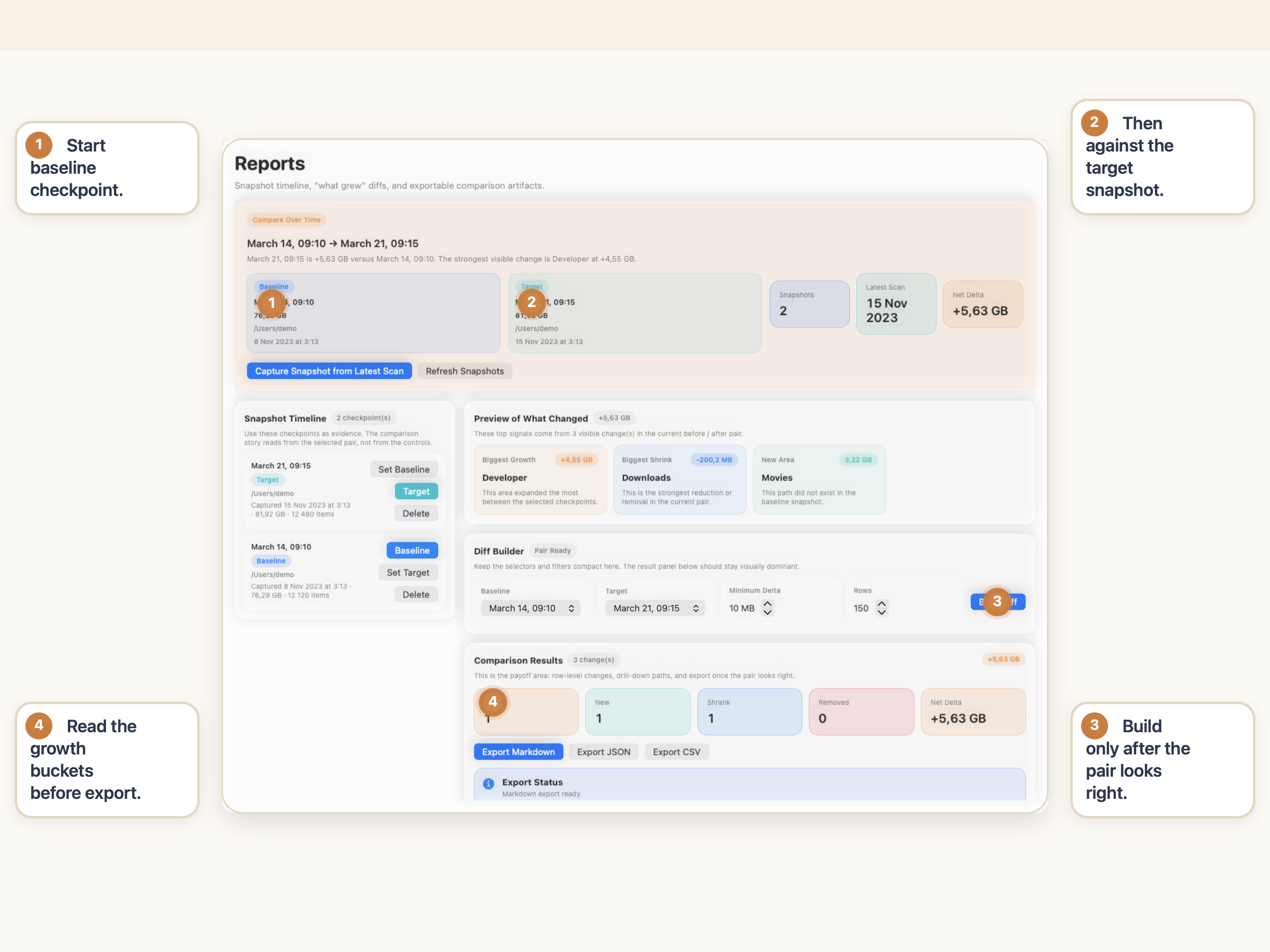
Useful time comparison needs a consistent vocabulary. In StorageRadar, the structure is already clear:
BaselineTargetGrewNewShrankRemovedNet Delta
Baseline
The baseline is your earlier snapshot. It is the reference point that answers, “what did the disk look like before this period of growth or cleanup?”
Target
The target is the later snapshot. It answers, “what does the disk look like now?”
Net Delta
This is the overall size change between those two states. It gives you the headline answer before you drill into individual paths.
Grew and New
These are often the most important categories when you are hunting for the source of storage growth.
Grewtells you which existing paths increased in size.Newtells you which paths appeared after the baseline.
Shrank and Removed
These are especially useful after cleanup or uninstall work.
Shrankshows paths that still exist but became smaller.Removedshows paths that disappeared entirely.
Why scope matters
For this comparison to mean anything, Baseline and Target need to refer to the same root path. Otherwise you are not really comparing growth over time. You are comparing two different scopes.
How time comparison differs from a simple Largest view
This distinction is worth making explicit because the two tools solve different problems.
| Question | Best view |
|---|---|
| What is taking the most space right now? | Largest |
| Where do those heavy paths sit in the folder tree? | Disk Map |
| What changed between two moments in time? | Reports |
| Which paths grew, shrank, appeared, or disappeared? | Reports |
Largest is a current-state tool. It is ideal when the Mac is already under pressure and you need to know what is heavy now.
Reports is a comparison tool. It is ideal when the real problem is growth, recurrence, or post-cleanup verification.
If you want the broader diagnostic model around current scans versus time comparison, How to Find What Is Taking Space on Mac is the companion guide.
Why manual comparison is awkward
You can try to do this by hand, but the workflow usually breaks down fast.
Manual measurement is inconsistent
People rarely capture the same folders at the same time with the same scope. That makes later comparison noisy.
Memory is a bad baseline
Most people do not remember whether a folder was 18 GB, 26 GB, or 33 GB last Thursday. They remember only that it feels larger now.
Finder does not preserve growth history
Finder is useful for inspecting a known path. It is not a historical diff tool. It does not keep local snapshots of disk structure or summarize change over time in a meaningful way.
Context gets lost
Even if you write numbers down manually, you still lose the structure behind them. You might know that a folder grew by 12 GB, but not whether that came from one child path or from many smaller changes inside it.
Cleanup verification becomes guesswork
After a cleanup pass, manual comparison often becomes “I think I got some space back.” That is much weaker than seeing what actually shrank or disappeared.
How StorageRadar handles disk comparison over time
This is where StorageRadar starts to look less like a one-time visualizer and more like an analysis tool.
That workflow matters because it changes the question from “what looks scary right now?” to “what actually changed?”
That is a much stronger question on developer machines, on long-running workstations, and after any cleanup or uninstall you want to verify properly.
Track growth, not just size.
See Reports & SnapshotsWhen this workflow is worth the extra step
Time comparison is not necessary for every cleanup task. If the disk is full because Downloads obviously contains a pile of old DMGs and exports, a current Largest view may be enough.
But comparison becomes worth it when:
- storage keeps shrinking gradually and you do not know why;
- the Mac has multiple complex workflows layered on top of each other;
- you want to validate the effect of a cleanup instead of guessing;
- you need evidence of what changed, not just intuition about what feels large.
That is why this workflow converts differently than a generic cleanup article. It shows the product as an analysis tool, not just as a cleaner.
Conclusion
Comparing disk usage over time helps you answer a better question than ordinary large-file browsing.
Instead of asking only what is big now, you can ask what grew, what appeared, what shrank, and what disappeared between two moments. That is often the difference between guessing and actually finding the source of storage growth.
Frequently asked questions
Why is comparing disk usage over time useful on Mac?
A current list of large files shows what is big now, but time comparison shows what actually changed. That makes it much easier to find the source of gradual storage growth.
When should I compare snapshots instead of just checking the largest files?
Compare snapshots when storage keeps shrinking over days or weeks, after a major tool update, after Docker or ML work, after a cleanup pass, or any time you need to know what grew between two moments instead of what is merely large right now.
What do Grew, New, Shrank, Removed, and Net Delta mean?
Grew shows paths that increased in size. New shows paths that appeared after the baseline. Shrank shows paths that got smaller. Removed shows paths that disappeared. Net Delta shows the overall change between the two snapshots.
How is snapshot comparison different from a Largest view?
Largest shows the biggest items in one current scan. Snapshot comparison shows how storage changed between two compatible snapshots. They answer different questions and are most useful together.
Can I compare disk usage over time manually in Finder?
You can try, but it is awkward. Finder does not preserve historical snapshots, compute deltas, or organize growth and shrinkage clearly, so manual comparison quickly becomes error-prone.
Why do baseline and target need the same root path?
The comparison only makes sense when both snapshots describe the same scope. If one snapshot covers a different root path, the diff stops being a meaningful growth analysis.