To completely uninstall an app on Mac, quit the app, use its own uninstaller if it has one, then review any remaining support files before deleting them. Dragging the app to Trash removes the bundle, but containers, caches, settings, and helpers can remain elsewhere.
Apple’s own guidance is a useful starting point here: if an app includes an uninstall tool, use that first. That is often the only flow that knows where the app placed its support files, login items, extensions, caches, and related non-user data.
That means there are really two uninstall problems on Mac:
- removing an installed app correctly;
- cleaning up remaining files after the app is already gone.
If the app bundle is already removed and you are only chasing residue, jump to How to Remove App Leftovers on Mac Without Losing Data. This guide is for the uninstall-first workflow.
Main rule: uninstalling the app bundle and removing the app's remaining files are related steps, but they are not the same decision.
Quick answer
- Quit the app and check whether it provides its own uninstall tool or remove feature.
- If it does, use that first instead of starting with Finder.
- If it does not, move the
.appbundle to Trash from/Applicationsor its actual install location. - Then review common leftover locations such as
Application Support,Containers,Group Containers,Caches,Preferences, andLogs. - Do not delete every match by name alone. Some paths still hold local data, shared settings, or helper components.
- Use preview and path review before the final remove step, especially when the uninstall plan includes caution or blocked items.
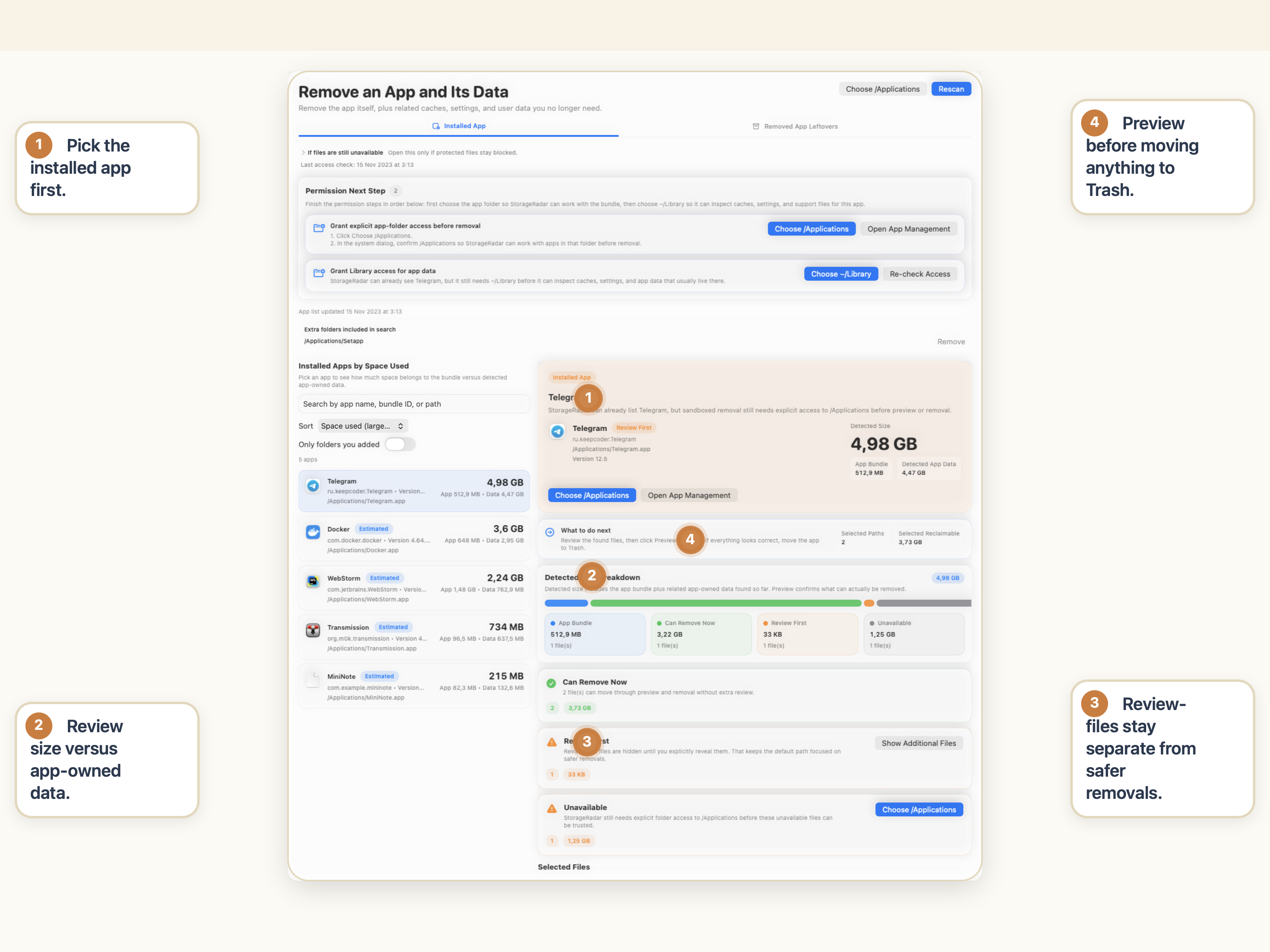
What “completely uninstall” really means on Mac
The phrase sounds simple, but it covers more than one layer.
At minimum, a complete uninstall can involve:
- the app bundle itself;
- support files in
~/Libraryor/Library; - sandbox containers and group containers;
- caches, preferences, logs, and saved state;
- login items, launch agents, helper tools, or extensions the app added outside its main bundle.
That is why dragging an app to Trash is often only part of the job.
It is also why “completely uninstall” should not turn into “delete every file that looks related.” Apple also notes that deleting or uninstalling an app does not automatically remove every document or other file you created with that app. Those are different consequences.
Use the app’s own uninstaller when it exists
This is the best first rule.
Apple’s support guidance explicitly says that if an app includes an Uninstall or Uninstaller app, that is the best way to delete it. Some apps also expose this as a remove or reset action inside the app itself.
Why it matters:
- the vendor’s uninstaller may know about support files Finder does not show you directly;
- it may remove login items, extensions, or helper components that live outside the main app bundle;
- it is less likely to leave behind product-specific debris than a bundle-only delete.
If the app includes an uninstaller, start there. Then review what remains instead of assuming the uninstall handled every path perfectly.
Why moving an app to Trash is only the first step
When an app does not provide its own uninstall flow, the normal Finder path is to move the .app bundle to Trash.
That removes the application package itself. What it does not guarantee is cleanup of everything the app created while it was running.
| App-related layer | What it may contain | Common locations | Safe to remove blindly? |
|---|---|---|---|
| App bundle | The app itself | /Applications, custom app folders | Usually yes, if you are uninstalling it |
| Support files | Local databases, indexes, downloads, workspaces, internal state | ~/Library/Application Support, /Library/Application Support | No |
| Containers | Sandbox data, settings, cached content, local documents | ~/Library/Containers, ~/Library/Group Containers | No |
| Caches and logs | Rebuildable data, previews, diagnostics, temp files | ~/Library/Caches, ~/Library/Logs | Sometimes, but still confirm ownership |
| Preferences and saved state | Behavior settings, UI state, recent items | ~/Library/Preferences, ~/Library/Saved Application State | Usually review first |
| Helpers and launch items | Background components, agents, app-managed tools | /Library/LaunchAgents, /Library/LaunchDaemons, /Library/PrivilegedHelperTools | No |
That is the core uninstall mistake on Mac: users remove the bundle, see the app name still appearing in search or disk usage, and then overcorrect by mass-deleting every matching path.
Common leftover locations after app removal
If you are uninstalling manually, these are the usual places worth checking:
User Library
Most common~/Library/Application Support, ~/Library/Containers, ~/Library/Group Containers, ~/Library/Caches, ~/Library/Preferences.
Logs and state
Often forgotten~/Library/Logs and ~/Library/Saved Application State can keep app-specific files after the bundle is gone.
Shared Library
Higher caution/Library/Application Support, helper tools, launch items, and other shared app-owned components need slower review.
Name matching pitfalls
Common mistakeSome files use the app name, some use the bundle ID, and some use vendor names or older aliases. Search is helpful, but it is not enough on its own.
This is also where uninstall turns into a leftovers problem. If the bundle is already gone and the real task is only residue review, switch to the dedicated leftovers guide instead of treating the whole workflow as one generic delete pass.
How to completely uninstall an app manually
If there is no vendor uninstaller, use a manual sequence and keep review separate from deletion.
1. Quit the app first
Do not start while the app is still open. If macOS says the app is in use, stop and close it properly before you continue.
2. Check the app folder for an uninstall tool
Look in the same folder as the app bundle or in the app’s own settings. If the vendor exposes Uninstall, Remove, or Reset, prefer that path first.
3. Move the app bundle to Trash
If there is no uninstall tool, remove the .app bundle from /Applications or wherever it is installed. Some apps may ask for administrator approval, and some macOS apps cannot be removed this way.
4. Search common leftover locations by app name and bundle ID
This is where you look beyond the bundle itself. Check the common Library paths and search by:
- app name;
- bundle ID;
- vendor name;
- legacy product name or aliases, if the app has them.
5. Review the remaining files by category, not just by name
This is the step people skip most often.
Application Support, Containers, and Group Containers can still hold local databases, downloaded assets, project state, or shared app data. Caches and Logs are often lower risk, but even those deserve an ownership check before deletion.
6. Remove only the confirmed leftovers
Once you know which paths are real leftovers and which ones still matter, remove the confirmed leftovers. If you want the softer recovery path, use Trash first instead of treating every uninstall like a permanent delete.
Do not batch-delete by keyword. The app name alone is too weak as a cleanup rule when containers, support folders, and shared components are involved.
When not to delete everything with the app’s name
This is the main difference between a clean uninstall and a risky one.
Application Support is not just clutter
Many apps keep the data users actually care about in Application Support: databases, downloaded assets, local indexes, templates, or workspace state. The folder name sounds disposable. It often is not.
Containers can hold real app data
Sandbox containers are not only cache buckets. They can contain documents, internal state, settings, and data the user would reasonably expect to survive until they intentionally remove it.
Group Containers can be shared
Group containers can be used by related apps, helpers, or extensions. If you remove them blindly, you may be deleting more than the one app you were trying to uninstall.
Helper tools deserve slower review
Launch items, helper tools, and privileged components are a different class of cleanup target. If the app vendor installed them, they may require a more deliberate uninstall path than ordinary user Library files.
When permissions and blocked paths matter
Manual uninstall is not only a file-matching problem. On modern macOS, it is also an access problem.
Some app-related paths are immediately visible. Others can be blocked until you refresh access or grant the right permission. This is especially common around containers, shared Library paths, or app-managed artifacts.
If the uninstall plan looks incomplete, or if some items appear as blocked or review-needed, treat that as a real signal. Do not assume the app is broken and do not assume the missing paths are safe to ignore.
If that is the part you are wrestling with, read How to Fix Blocked Paths and Permissions in macOS Cleanup Tools.
Why complete uninstall is safer when you review by path, risk, and status
The uninstall problem on Mac is not “find a file named like the app.” The uninstall problem is “build the right uninstall plan.”
That plan should tell you:
- which candidates belong to the app bundle itself;
- which ones are likely safe leftovers;
- which ones need manual review because they may still hold app data;
- which ones are blocked by current macOS access rules;
- which candidates are already missing and should not be counted as cleanup wins.
That is the difference between uninstalling confidently and guessing from Finder search results.
If your real need is “the app is gone but I want the residue workflow only,” go to How to Remove App Leftovers on Mac Without Losing Data. If your real need is broader space recovery, return to How to Free Up Disk Space on Mac Without Breaking Anything.
Bottom line
To completely uninstall an app on Mac, start with the app’s own uninstaller when it exists. If it does not, remove the app bundle, then review remaining support files, containers, caches, settings, and helpers before deleting them.
The safe uninstall rule is simple: bundle removal is one step, leftover review is another, and the right workflow depends on whether the app is still installed or already gone.
Frequently asked questions
How do I completely uninstall an app on Mac?
Quit the app, use the app's own uninstaller if it provides one, then review and remove any remaining support files, containers, caches, preferences, logs, or helpers that still belong to that app.
Does moving an app to Trash completely uninstall it on Mac?
Not always. Moving the .app bundle to Trash usually removes the main application, but related files can remain in Library paths or system-level app locations.
Should I use the app's own uninstaller if it has one?
Usually yes. Apple's support guidance says the app's own uninstaller is the best option when it exists, because it knows where the app placed support files, login items, extensions, caches, and other non-user data.
Where do leftover app files usually stay on Mac?
Common locations include ~/Library/Application Support, ~/Library/Containers, ~/Library/Group Containers, ~/Library/Caches, ~/Library/Preferences, ~/Library/Logs, and some shared /Library paths.
Is it safe to delete everything with an app's name in Library?
No. Some matches are harmless leftovers, while others can still contain local databases, downloaded assets, shared data, or settings you may want to keep.