When a Mac cleanup tool says some paths are blocked or inaccessible, many users assume the app is broken.
Often it is not. The more common explanation is that macOS is doing exactly what its privacy model is designed to do: limit access to certain folders, app-related areas, and system-managed paths unless the right conditions are met.
That is why blocked paths should not feel mysterious. They are usually an access-state problem to diagnose, not immediate proof of a bad scan.
Main point: incomplete access is often a normal feature of the macOS privacy model, not automatically a bug in the cleanup tool.
Quick answer
Blockedor inaccessible paths usually mean macOS is limiting access, not that the tool necessarily failed.- Common causes include folder-scoped access, protected folders, app containers, external volumes, system zones,
Full Disk Access, andApp Management. - These issues can show up during scans, app uninstall, leftovers cleanup, and developer cleanup workflows.
- The safest troubleshooting order is: inspect path status, refresh access, choose folders deliberately, review Privacy & Security, then re-run the workflow.
- Not every blocked item matters. Sometimes the right answer is to ignore it and keep a narrower scan scope.
- A trustworthy tool should explain which paths are
Accessible,Blocked, orMissingand give recovery hints instead of hiding the problem.
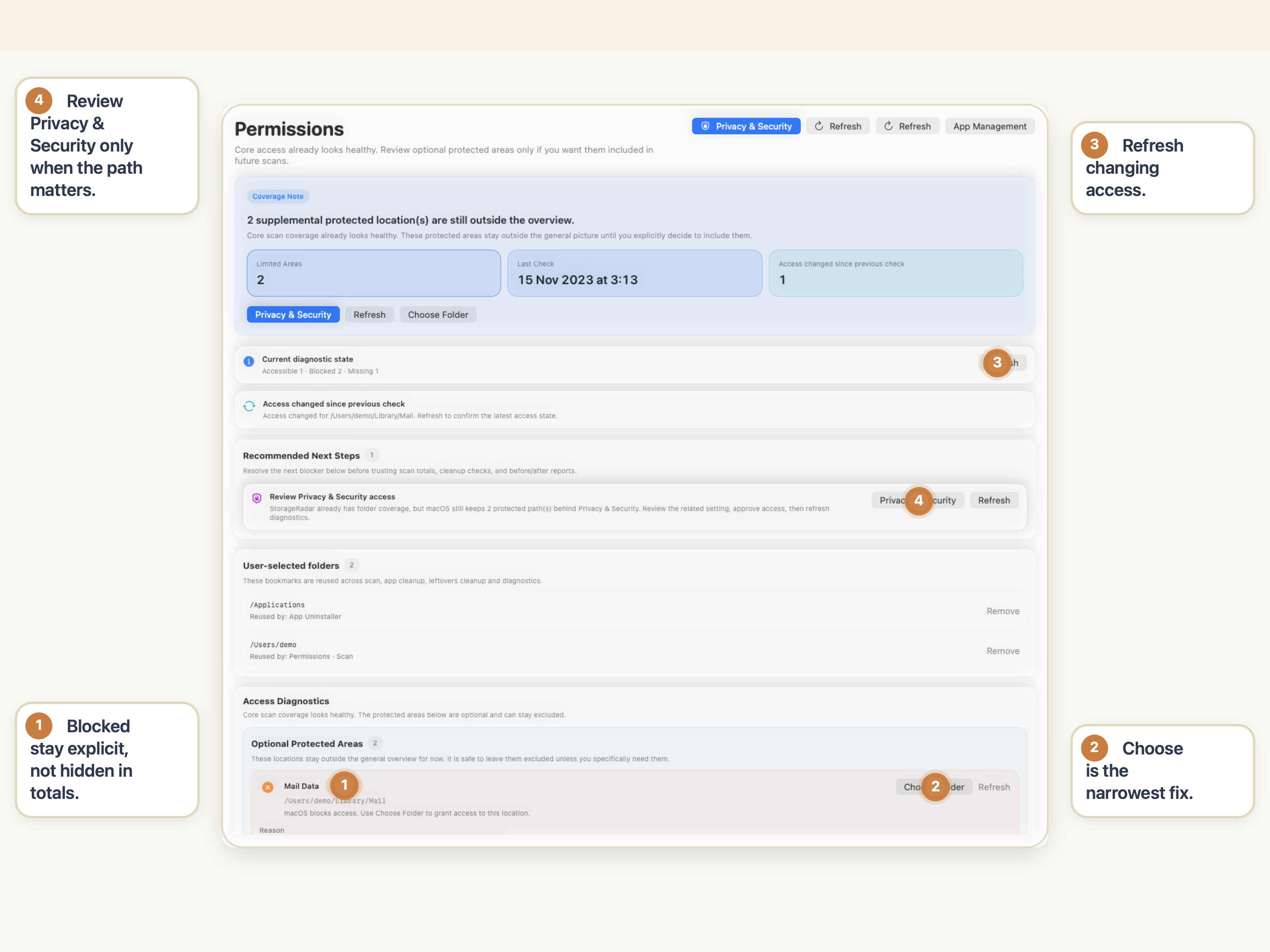
Quick triage: fix it now or leave it alone
Refresh first
Fastest checkRe-run Refresh before you escalate anything. Stale access state is a common reason blocked paths look worse than they are.
Choose Folder when it is a scope problem
Least invasive fixIf the path is user-owned and specific, choosing that folder directly is often cleaner than widening permissions for the whole machine.
Review permissions only when the blocked path matters
Escalate deliberatelyCheck Privacy & Security, Full Disk Access, or App Management only when the missing path is relevant to the workflow you are trying to finish.
Leave it alone when the result is already good enough
Safe restraintIf the current scan already explains the storage issue and the blocked path is peripheral, a narrower scope may be the better answer.
What blocked or inaccessible means in plain language
If a cleanup tool marks a path as blocked, it usually means one of two things:
- the path exists, but macOS is not currently allowing access to it in this context;
- the tool expected the path to be relevant, but current permissions are not enough to inspect or act on it safely.
That matters because blocked does not mean the same thing as missing.
Blockedmeans the path may be real, but unavailable right now.Missingmeans the path is already gone or no longer exists where expected.Accessiblemeans the tool can actually inspect that location in the present state.
Those are different troubleshooting paths. If you mix them together, the product can look inconsistent when it is really reporting different states correctly.
Why macOS cleanup tools hit access limits
macOS is not a flat file system where every app can read everything automatically.
Folder-scoped access
Some access is only granted for a specific user-chosen folder. That is why a Custom Folder or user-selected path can be visible while nearby paths are still unavailable.
Protected folders
Paths under areas like Desktop, Documents, and other privacy-sensitive zones can be restricted unless the app has the right approval path or explicit user selection.
Full Disk Access
Some cleanup and inspection tasks need broader access than a normal sandboxed app receives. Without it, the app may still work, but some parts of the tree stay partially visible or unavailable.
App Management
App-related cleanup can require App Management, especially when the workflow touches installed apps, helper components, or app-owned areas that macOS protects more carefully than ordinary files.
App containers
Containers and group containers are one of the most common sources of confusion. They may look like ordinary folders, but macOS often treats them as privacy-sensitive app-owned areas.
External volumes
External disks, removable media, or user-selected roots can introduce their own scope issues. The app may see some volume paths and not others depending on how access was granted.
System zones
Some system-managed areas are simply not meant to behave like general cleanup targets. A trustworthy cleanup tool should surface this honestly instead of pretending every path is equally available.
Where these issues usually show up
Blocked paths tend to appear in predictable workflows.
During scan
The scan can finish, but still report warnings or blocked items. That does not necessarily invalidate the whole result. It means part of the tree was unavailable and should be interpreted accordingly.
During app uninstall
Installed apps and their related data often cross into protected library areas, helper tools, or app management boundaries. This is one reason uninstall plans need access status, not just filename matches.
During developer cleanup
Developer machines touch more caches, runtimes, simulators, containers, and tool-owned directories than ordinary home machines. That increases the odds of access friction.
During leftovers cleanup
Leftovers are especially tricky because some candidate paths are truly disposable while others sit in protected app-owned zones. That makes path status part of correctness, not an optional detail.
How to resolve blocked paths step by step
The safe response is not to panic and grant everything immediately. It is to troubleshoot in order.
1. Open the permissions view first
In StorageRadar, start with Permissions. This is where the app shows what it can actually access on the current Mac instead of making you guess.
2. Run Refresh
Refresh first. Access state can be stale, especially after system prompts, privacy-setting changes, or folder-selection changes. Do not assume the last result is still current.
3. Use Choose Folder when the problem is scope
If the issue is about a user-owned path you care about, choosing the folder directly may be the cleanest fix. This is often better than widening permissions globally when you only need one specific root.
4. Review Privacy & Security
If the path is still blocked, open Privacy & Security and confirm whether the expected access boundary has actually been granted on the Mac.
5. Check Full Disk Access
If the workflow touches protected or privacy-sensitive areas more broadly, Full Disk Access may be the missing requirement. This is common when the app can see some of the tree but not the full context around it.
6. Check App Management
If the issue appears around uninstall or app-related cleanup, App Management may matter more than users expect. It is not a cosmetic permission. It can determine whether app-related paths are actionable.
7. Read the recovery hints
This is where a good cleanup tool should help. If the app gives recovery hints, use them. They are often the fastest explanation of what the blocked state actually means.
8. Open the blocked path in Finder when needed
Sometimes the best next step is to inspect the path directly. Opening the path in Finder can clarify whether the path is relevant, missing, or simply outside the scope you care about.
9. Re-run the scan or cleanup workflow
After you update access, go back and repeat the relevant workflow. Otherwise you are evaluating old results instead of the corrected access state.
When it is safe to leave a blocked path alone
This is the important honesty section. Not every blocked item deserves escalation.
Not every blocked path is critical
If the current scan already explains the storage issue, blocked side paths may be irrelevant to the actual decision you need to make.
More permissions are not always the right answer
If the app is only blocked on a few nonessential paths, widening access may create more friction than value. Grant broader permissions only when the blocked areas actually matter to the workflow.
Narrow scope can be the safer choice
Sometimes the cleaner answer is to stay within Home Folder or choose a specific custom folder instead of trying to force broad visibility across the whole machine.
Protected system zones are not always worth pursuing
If the blocked item lives in an area you are not trying to manage directly, it may be better to treat that as expected and move on.
How StorageRadar helps with this
StorageRadar is useful here because it does not reduce access problems to a vague warning.
That matters because macOS access friction is a product experience problem only if the product hides it. If the tool makes path state visible, the user can troubleshoot without guessing.
If your blocked-path issue is happening during app cleanup specifically, How to Remove App Leftovers on Mac Without Losing Data is the most relevant companion guide.
Resolve access issues before repeating cleanup.
See Permissions & AccessConclusion
Blocked paths in macOS cleanup tools are often normal. They usually reflect privacy boundaries, folder scope, protected app data, or missing access approvals, not an automatic app failure.
The right workflow is to diagnose the access state, widen permissions only when necessary, and re-run the cleanup step with clearer visibility. That is much safer than assuming every inaccessible path means the product is broken.
Frequently asked questions
Why can't my Mac cleanup app access some files?
It usually means the tool cannot currently access that path under macOS privacy or sandbox rules. That does not automatically mean the app is broken.
Is a blocked path always a bug in the cleanup app?
No. In many cases it is a normal result of macOS privacy boundaries, protected folders, app containers, system zones, or missing user-granted access.
When do I need Full Disk Access or App Management?
You may need Full Disk Access or App Management when cleanup touches protected library areas, app-related data, helper components, containers, or privacy-sensitive paths that are not available under ordinary access.
Why can a scan miss some files even when the tool works normally?
A scan can miss files because some paths are blocked, stale, missing, outside the selected folder scope, or protected by current macOS access rules. Incomplete visibility is often an access issue, not a scan failure.
Should I grant every cleanup tool more permissions?
Not automatically. If blocked items are nonessential, it may be better to stay within a narrower scan scope instead of expanding permissions. More access is only worth granting when it solves a real problem you need to inspect.
When is it safe to ignore blocked items?
It is often safe to ignore blocked items when they are outside the workflow you care about, when the current scan already explains the storage issue, or when you prefer staying within Home Folder or a specific custom folder instead of widening access.