To free up disk space on Mac without breaking anything, start with the obvious user-owned files first, then move into app data, developer storage, and ~/Library only after review. The safe sequence is: diagnose, remove the clean wins, review the risky paths, and only then delete.
That distinction matters because “my Mac is full” is not one cleanup problem. A 6 GB DMG in Downloads, a 6 GB simulator folder, and a 6 GB app support directory should not be treated the same way.
Direct answer: when storage is tight, your first wins are usually old installers, duplicate archives, and large files you personally recognize. Review-first territory starts the moment the path becomes app-owned, system-adjacent, or workflow-sensitive.
Quick answer
- Check macOS storage categories first so you know whether the pressure is broad clutter, media, apps, or a confusing system bucket.
- Sort `Downloads`, `Desktop`, and `Documents` by size and remove old installers, DMGs, ZIPs, exports, and duplicate files you understand.
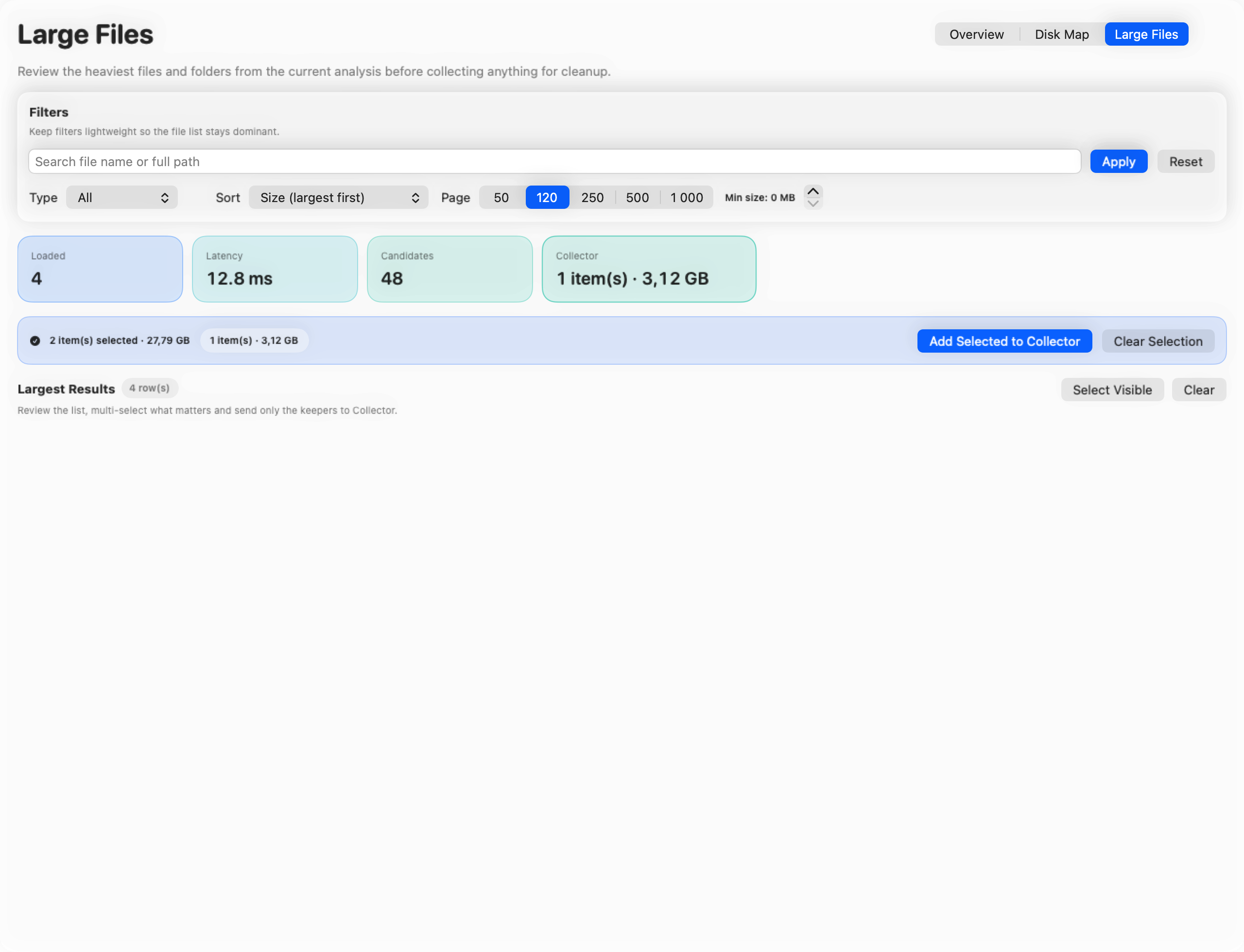
- Review the largest files and folders before deleting smaller noise.
- Treat `~/Library`, app support files, containers, virtual machines, simulators, and developer storage as review-first paths.
- If the problem is really deletion safety, switch to [How to Review File Deletions Before Cleanup on Mac](/blog/how-to-review-file-deletions-before-cleanup-on-mac/).
- If the problem is really diagnosis, start with [How to Find What Is Taking Space on Mac](/blog/how-to-find-what-is-taking-space-on-mac/).
Start with the broad view, not with deletion
Apple’s own guidance still matters here. Use macOS to see how much storage space is available on your Mac and review the built-in storage recommendations before you delete anything.
That first pass does not solve the problem by itself. What it does do is tell you what kind of cleanup problem you have:
- personal files and exports;
- installed apps and old installers;
- a vague
System Databucket; - developer storage such as Xcode, simulators, Docker, or package caches;
- one or two giant folders that need direct review.
That is important because broad cleanup advice is only useful until the disk pressure turns out to be specific.
Safe first, review first, and do-not-touch-blindly
| Category | Safe first move | Review first | Do not do blindly |
|---|---|---|---|
| User-owned files | Old DMGs, ZIPs, duplicate exports, stale downloads | Large media, archives you may still need, project copies | Deleting recent files without checking whether they are the only copy |
| Installed apps and installers | Unused installer files and duplicate app bundles you recognize | App bundles you still use occasionally | Deleting Library files just because they share the app name |
~/Library and app data | Almost nothing by default | Caches, Application Support, Containers, Preferences | Treating Library as one giant junk folder |
| Developer storage | Only if you know the toolchain and path | DerivedData, simulators, Docker, package caches, build artifacts | Randomly wiping ~/Library/Developer or Docker-managed paths |
| Large technical assets | Only after scope review | Virtual machines, device backups, SDK runtimes, model files | Deleting them because they look technical and large |
This is the simplest way to avoid cleanup mistakes: user-owned and recognizable comes first; app-owned and workflow-owned gets reviewed separately.
What to clean first when your Mac is almost full
1. Downloads, Desktop, and Documents
This is the highest-value first pass for most people because the ownership model is simple. If you put it there, you can usually explain what it is.
The fastest wins are usually:
- DMG installers from apps that are already installed;
- duplicate ZIP archives;
- exported videos, PDFs, and screen recordings;
- stale project copies and ad-hoc backup folders;
- large attachments or downloads you already used once.
If your Mac just threw a low-storage warning, this pass often buys back enough space to stop the panic and make the second pass more deliberate.
2. Old installers and duplicate app bundles
Deleting an installer is not the same as uninstalling an app.
That difference matters because many people jump from “I can remove that old DMG” to “maybe I should also wipe every folder that contains the app name.” Those are different risk levels.
If you need the uninstall problem specifically, use How to Completely Uninstall an App on Mac or the narrower leftovers guide afterward. Do not fold those decisions into the first emergency cleanup pass.
3. The largest current paths
Once the easy wins are gone, the next job is not “delete more.” The next job is “understand the biggest paths.”
That is where large-file review becomes more valuable than generic cleanup folklore. A few paths usually explain most of the pressure:
- one overgrown media or export folder;
- one app-owned support branch;
- one developer-heavy branch;
- one virtual machine, device backup, or simulator tree.
This is the line between broad cleanup and actual diagnosis.
What immediately moves into review-first territory
~/Library
~/Library contains caches, preferences, app support, containers, saved state, local databases, and other files that are easy to misjudge.
If a path in ~/Library looks large, the right next question is not “can I delete it?” The right next question is “what owns it, and what breaks if it disappears?”
App support files and containers
This is where many bad cleanup decisions happen. Folders inside Application Support, Containers, or Group Containers can hold:
- downloaded assets;
- app state and user settings;
- sign-in state;
- local databases;
- working files the app still needs.
Those are not the same as old installers or stale downloads. They belong in a review workflow, not in a fast reclaim pass.
Developer storage
On a developer Mac, the disk often fills because of Xcode, simulators, Docker, or package-manager artifacts, not because of ordinary clutter.
Those paths can be reclaimable, but they are not broad cleanup targets. They are their own workflow. If this is the real problem, jump to the tool-specific articles rather than improvising inside a giant developer folder.
Virtual machines, local backups, and heavy runtimes
These items can reclaim a lot of space quickly. They can also destroy a workflow quickly.
That is why they belong in the same bucket as ~/Library: big potential win, but never a blind delete.
Why System Data and one-click cleaners confuse people
System Data is confusing because it is a reporting bucket, not a single cleanup folder. It can include caches, logs, local snapshots, app support, simulator data, and developer artifacts. If that category is the thing that looks wrong, switch to Mac System Data Too Large? What It Usually Means and What to Check before you start deleting technical-looking paths.
One-click cleaners make this worse because they flatten all of those different categories into one emotional action: “Your Mac is cluttered. Press clean.”
That is the wrong mental model. If you are evaluating tools rather than just the cleanup sequence, read Best CleanMyMac Alternatives for Mac in 2026 and compare them by workflow, not by marketing promise.
This page is the broad guide, not the delete-candidate checklist
This article is for the broad panic-intent question: “what should I clean first when the disk is full?”
It is not the same question as:
- which exact delete candidates are safe;
- what
Ready,Blocked, orNeeds Checkshould mean; - when
Move to Trashis safer than permanent delete; - how preview, dry-run, and permission context should change the final decision.
That narrower problem is exactly what How to Review File Deletions Before Cleanup on Mac is for.
Bottom line
The safest way to free up disk space on Mac is not to clean everything. It is to remove the obvious wins first, then review the risky paths separately.
Start with the files you can explain.
Use path-level review for everything app-owned, system-adjacent, or workflow-sensitive.
And if a path feels technical enough that you cannot explain it confidently, that is your signal to stop deleting and start reviewing.
Frequently asked questions
What can I safely delete first on Mac when storage is full?
Start with old installers, DMGs, duplicate archives, and large user-owned exports in Downloads, Desktop, or Documents. Move into Library, app data, developer storage, and virtual machines only after review.
Is it safe to delete files in ~/Library when Mac storage is full?
Not blindly. ~/Library mixes caches, app support, containers, preferences, and local databases. Some paths are disposable, but many are still tied to app state or user data.
Can I delete DMG files after installing apps?
Usually yes. If the app is already installed and you do not need the installer for offline reuse, old DMG files are often one of the safest cleanup wins on a full Mac.
Why is System Data so large on Mac?
System Data is a broad reporting category, not one cleanup folder. It can include caches, logs, local snapshots, app support files, simulator data, and developer artifacts.
Can deleting caches break apps on Mac?
Sometimes. Many caches rebuild, but some app-owned data sits next to disposable files in paths that still deserve review before deletion.
Should I use a one-click cleaner when my Mac is almost full?
Use caution. One-click cleaners optimize for speed, but cleanup on Mac is safer when scan, review, and deletion stay separate decisions.