The safest way to delete files on Mac is to review the candidate before the delete step, not after it. That means checking the path, ownership, risk, access status, and delete mode before you decide whether the file belongs in Trash, in a dry-run, or nowhere near a cleanup batch.
This is a narrower question than “how do I free up disk space?” You are already past the diagnosis stage. You already have candidates. Now the job is to decide what they really are.
Direct answer: before deleting anything on Mac, review the exact path, who owns it, whether the file is user data or app data, whether permissions are complete, and whether you are still in preview or already at the irreversible step.
Quick answer
- Do not review cleanup candidates by size alone.
- Check path, ownership, risk, access status, and delete mode together.
- Treat app support files, containers, active project data, simulator data, and unknown `~/Library` paths as review-first by default.
Ready,Needs Check,Blocked, andMissingare decision signals, not decorative labels.- Preview, dry-run, and preflight are part of the review phase, not optional extras after the decision.
- If you still need the broad sequence, go back to [How to Free Up Disk Space on Mac Without Breaking Anything](/blog/how-to-free-up-disk-space-on-mac-without-breaking-anything/).
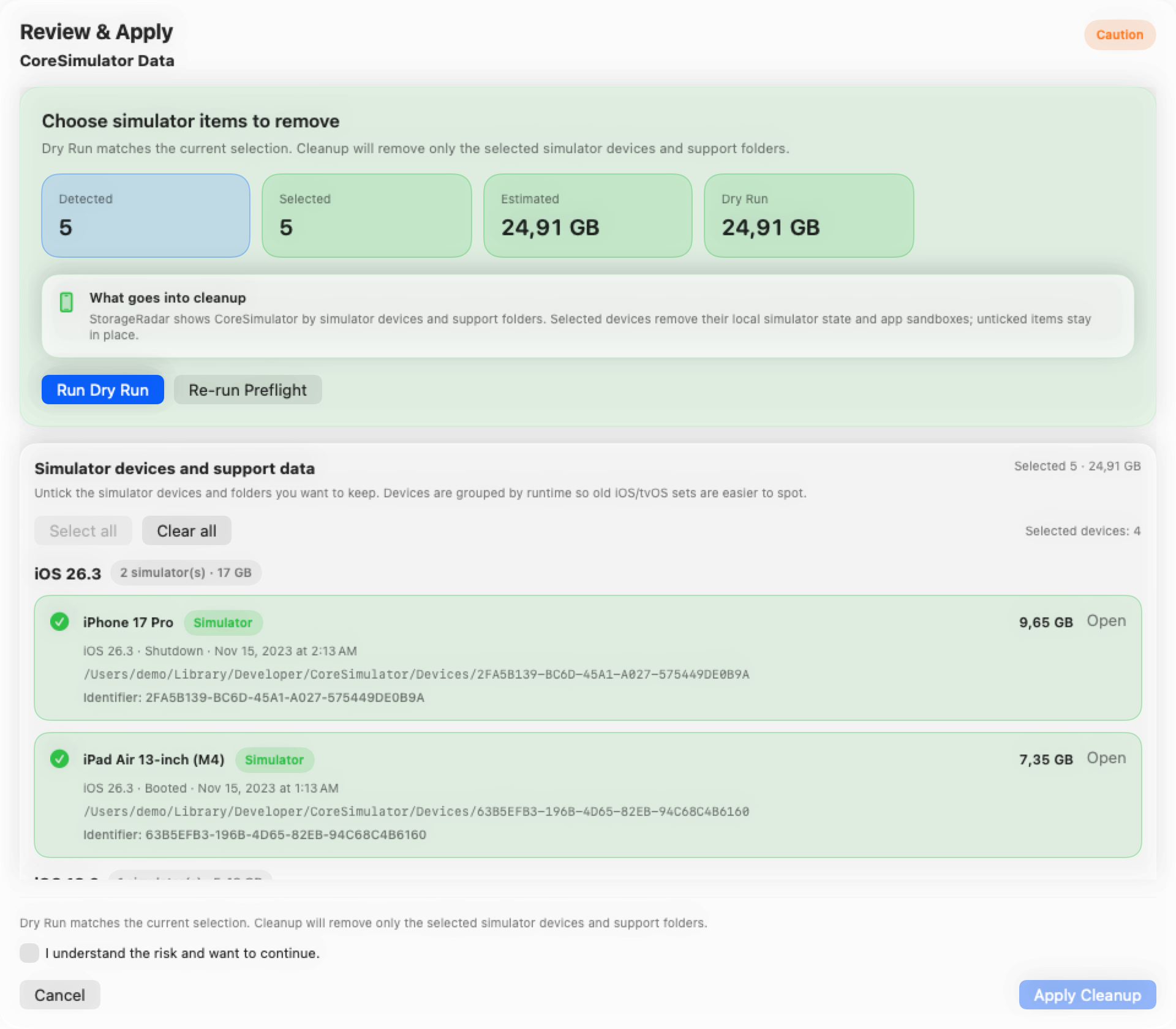
The five checks before you delete anything
| Check | What to ask | Why it matters |
|---|---|---|
| Path | Where does this file or folder actually live? | Path tells you whether the candidate is user-owned, app-owned, system-adjacent, or toolchain-specific. |
| Ownership | Who created it and who still depends on it? | A large export and a large app database are not the same cleanup decision. |
| Risk | Is this low-risk, cautionary, or workflow-sensitive? | Risk prevents you from batching harmless installers together with app state or virtual machine data. |
| Access status | Is the current view complete and actionable? | A blocked or stale path is not the same as a reviewed path. |
| Delete mode | Are you in preview, Trash, or permanent delete? | The final action changes what kind of certainty you need. |
If those five checks are missing, the cleanup decision is still under-specified.
Concrete examples: safe, caution, and do-not-touch-blindly
Usually safe after confirmation
These are still worth one glance, but the risk is usually straightforward:
- an old
DMGinstaller in~/Downloads; - a duplicate
ZIParchive you already extracted; - an exported video or PDF you know you no longer need;
- a generated build folder inside a project you are about to rebuild anyway.
The common theme is simple ownership. You know what the file is, why it exists, and what happens if it disappears.
Caution: review before delete
These often look disposable but regularly hold useful state:
~/Library/Caches/...for apps you still use;~/Library/Application Support/...folders that may contain local databases or downloaded assets;~/Library/Developer/...paths for Xcode, simulators, or other toolchains;- Docker-managed directories, package caches, and runtime assets;
- leftover groups from an app you recently removed but may still want settings or data from.
These are not “never delete” paths. They are “review properly first” paths.
Do not touch blindly
These need strong justification and usually a more specific workflow:
- unknown items inside
/Systemor other system-owned directories; - random folders inside
ContainersorGroup Containers; - virtual machine images, local device backups, or simulator device trees you have not scoped yet;
- shared
/Librarypaths that may affect more than one app or more than one user on the Mac.
The common pattern is the cost of a bad deletion. Rebuild time, data loss, broken sign-in state, or damaged local environments all live here.
Why path and ownership beat size
People make cleanup mistakes because size creates urgency.
A 20 GB folder feels like an obvious target. But size only tells you where to look. It does not tell you what the file is, whether it is rebuildable, or whether another part of the system still depends on it.
That is why review starts with context:
- the full path;
- the type of data;
- the owner;
- the likely consequence of removal.
If you cannot explain those four things, you are not at the delete step yet.
Why preview, dry-run, and access status change the decision
Preview and dry-run are not UX polish. They are evidence.
They tell you whether the candidate list is still correct at the moment you are about to act. They also help surface permission gaps. Apple’s own guidance on controlling access to files and folders on Mac is relevant here because a cleanup target can look removable in theory while still being blocked or partially visible in practice.
The most useful state labels are usually:
Ready: the candidate is actionable in the current context;Needs Check: the review is still incomplete;Blocked: permissions or access context are limiting the result;Missing: the path changed or disappeared after it was detected.
Those labels change what the next safe action should be. Blocked is not a green light. Needs Check is not a minor inconvenience. They are both pause signals.
A practical review sequence after the scan
1. Start from the heaviest current paths
Use a ranked list or a map view first. Review begins with the items that matter, not with random small clutter.
2. Build a shortlist instead of acting on everything
Do not clean directly from a chaotic scan. Pick the candidates you are actually prepared to inspect.
3. Read path and ownership before size
This is the moment where many “easy” cleanup candidates stop looking easy. Good. That means the review step is working.
4. Run preview or dry-run before the final action
If the plan changes under preview, that is useful information. It means the apply step would have been less predictable than it looked.
5. Match certainty to delete mode
Move to Trash and Delete Permanently should not feel equivalent. The stronger the delete mode, the stronger your review needs to be.
How this differs from the broad cleanup guide
This page is not telling you where to start when the Mac is simply full. That broader question belongs to How to Free Up Disk Space on Mac Without Breaking Anything.
This page assumes you already have candidates.
Now the problem is no longer “what is large?” The problem is:
- which candidate is genuinely safe;
- which candidate needs more context;
- which candidate is blocked by permissions;
- which candidate should never have been in the same cleanup batch as the others.
That is why this page is narrower and stricter than a broad cleanup article.
Bottom line
Review-first cleanup is not about making deletion slower for the sake of ceremony.
It is about matching the decision quality to the cost of a mistake.
If the path is familiar, user-owned, and easy to replace, the decision can be fast.
If the path is app-owned, system-adjacent, permission-sensitive, or expensive to rebuild, the right response is not faster deletion. It is stronger review.
Frequently asked questions
What should I check before deleting large files on Mac?
Do not judge by size alone. Review the exact path, what category it belongs to, whether it is user-owned or app-owned, its risk level, current access status, and whether the cleanup step is only a preview or a final delete.
Why is preview or dry-run important before cleanup?
Preview and dry-run separate inspection from action. They let you verify what the tool plans to remove, spot blocked or caution paths, and catch consequences before the final delete step.
What is the difference between Move to Trash and Delete Permanently?
Move to Trash is usually the safer first deletion mode because it creates a softer recovery path. Delete Permanently is a stronger action and should be reserved for clearly understood, lower-risk candidates.
What do Ready, Needs Check, Blocked, and Missing mean in cleanup?
These statuses describe whether a candidate looks removable now, needs extra review, is currently blocked by macOS or permissions, or is already gone. They help you avoid assuming that detection and deletion are the same thing.
Why do permissions matter before deleting files on Mac?
Some cleanup targets live in protected or privacy-sensitive areas. A path can look removable in theory but still require Full Disk Access, App Management, or a fresh access check before the result is trustworthy.
Is review-first cleanup only for advanced users?
No. It helps anyone who wants to avoid deleting the wrong thing. Developers and power users often have more high-risk paths, but ordinary Mac users also benefit when app support files, containers, and leftovers are involved.