If your Mac says storage is almost full, do not start by deleting random files in ~/Library or system-looking folders. Start by checking which storage categories are actually large, then review the biggest real files and folders before you touch app data, developer storage, or anything you cannot clearly explain.
That warning is real, but it is still only a warning. It tells you the disk is tight. It does not tell you which cleanup action is safe.
That is why panic cleanup goes wrong. The machine feels urgent, so people optimize for speed instead of understanding.
Main rule: when macOS says storage is almost full, shift from category panic to path review before you delete anything technical-looking.
Quick answer
- Open
System Settings > General > Storageand confirm which categories are actually large. - Start with obvious wins such as Downloads, old installers, large exports, and unused media before you touch Library paths.
- Treat
System Dataas a clue, not a folder you can clean directly. - Keep unknown items in
~/Libraryas review-only until you know what app or workflow owns them. - If the pressure comes from Xcode, Docker, simulators, or VMs, switch to a category-specific cleanup pass instead of broad deletion.
- Use scan -> review -> remove, not panic -> guess -> delete.
When macOS says “Your Startup Disk Is Almost Full” what it actually means
Apple’s storage support docs frame this as a low-space problem that can affect normal tasks such as downloading, installing, or copying files. The warning is important because the Mac is telling you available space is tight enough that ordinary work may start failing or slowing down.
It does not mean one specific folder suddenly became junk. It means the disk is under pressure and you need to understand the pressure before cleanup becomes destructive.
That distinction matters because two machines can show the same warning for completely different reasons:
- one Mac is full of video exports and old DMGs;
- another is dominated by app support data and
System Data; - another is a developer machine filled by
DerivedData, simulators, Docker layers, and package caches; - another is simply crowded by a few huge files in
DownloadsorDocuments.
The warning is the same. The correct cleanup plan is not.
Step 1: See what is actually using space, don’t guess
Start with the built-in storage view first. Apple’s own storage guide says to open System Settings > General > Storage to see how space is used across categories and volumes.
That first check is useful for one reason: it changes your next move.
If Documents and Applications dominate, you probably do not need to touch system-looking paths first. If System Data looks suspicious, you still need to find the real heavy paths behind it. If developer storage is the issue, broad consumer cleanup advice will waste time.
Apple also documents built-in storage recommendations such as Store in iCloud, Optimize Storage, and Empty Trash automatically. Those are worth reviewing before you go manual, especially when the machine is tight and you want the safest first pass.
What to look for first
- which categories are actually large right now;
- whether the warning is mostly driven by user files, apps, or
System Data; - whether the category mix changed after a restart, update, or major install;
- whether the real problem is broad clutter or one or two huge paths.
If you do not know what is heavy yet, the next read is How to Find What Is Taking Space on Mac.
The usual suspects: Downloads, caches, app leftovers, developer files
Low-storage warnings often come from ordinary things that accumulated quietly, not from one broken system folder.
Downloads and old installers
Why it happensDMGs, ZIP archives, exported files, and duplicate attachments pile up long after you needed them once.
First moveSort by size and remove the biggest obvious files first.
App support data and leftovers
Why it happensApps keep caches, logs, support data, containers, and residue after partial uninstall workflows.
First moveReview app-owned paths carefully instead of treating Library data like generic clutter.
System Data and hidden growth
Why it happensCaches, snapshots, logs, and other broad storage contributors get grouped into one category.
First moveInspect the real large paths behind the category label before deleting anything.
Developer files
Why it happensXcode output, simulators, Docker layers, package caches, and VMs grow in the background.
First moveUse category-specific cleanup logic instead of broad file deletion.
Media, backups, and virtual disks
Why it happensA few very large items can explain most of the warning by themselves.
First moveCheck whether the item should be kept, moved, archived, or truly deleted.
This is the reason panic cleanup underperforms. People spend energy on tiny files because they feel safe, while a few obvious large items are doing most of the damage.
What is System Data and why is it so large?
Apple describes System Data as a general category for storage that does not fit neatly into more specific labels. In practice, that can include caches, logs, app support files, temporary files, VM files, local snapshots, simulator data, and other technical storage that the category view cannot express cleanly.
That is why System Data feels scary. It is visible, but not directly actionable.
A large System Data number does not automatically mean:
- macOS itself is broken;
- there is one giant junk folder waiting to be emptied;
- the right answer is to start deleting things from
/Systemor/Library.
It usually means you need one more step of investigation before cleanup.
If System Data is the confusing part of the warning, use the focused guide Mac System Data Too Large? What It Usually Means and What to Check before you guess around Library paths.
A safe cleanup checklist
When the warning is urgent, keep the checklist simple and ordered.
1. Confirm the biggest categories
Use Storage in System Settings first. The category view is not enough to clean from, but it is enough to stop you from choosing the wrong starting point.
2. Remove the biggest obvious wins
Look for:
- large files in
Downloads; - old installers and disk images;
- duplicate exports and media files;
- obviously unused project copies;
- Trash that still has large items in it.
These are usually safer first targets than technical-looking Library paths.
3. Review large folders before small clutter
Low-space situations are usually caused by a handful of heavy paths, not by hundreds of tiny files. Review the largest folders and files before you spend time on cosmetic cleanup.
4. Keep unknown Library paths in review-only mode
If a path lives in ~/Library, /Library, or another app-owned area, pause. Some of those folders are caches. Some are settings, containers, databases, or app state you still need.
5. Switch to the right category guide if the culprit is obvious
- for diagnosis: How to Find What Is Taking Space on Mac
- for broad safe cleanup: How to Free Up Disk Space on Mac Without Breaking Anything
- for
System Data: Mac System Data Too Large? What It Usually Means and What to Check - for app leftovers: How to Remove App Leftovers on Mac Without Losing Data
6. Delete only what you can explain
If you cannot explain what the path is, why it exists, and what will happen after it is removed, you are not ready to delete it yet.
How to clean up without breaking anything
The safe cleanup model is not complicated. It is just slower than panic mode.
- Check the broad categories.
- Review the biggest real paths.
- Decide whether each path is user-owned, app-owned, or system-owned.
- Choose between keep, move, archive, or remove.
- Delete only after the consequence is clear.
That sequence is why review-first cleanup works better than broad cleanup prompts or one-click logic when the machine is under pressure.
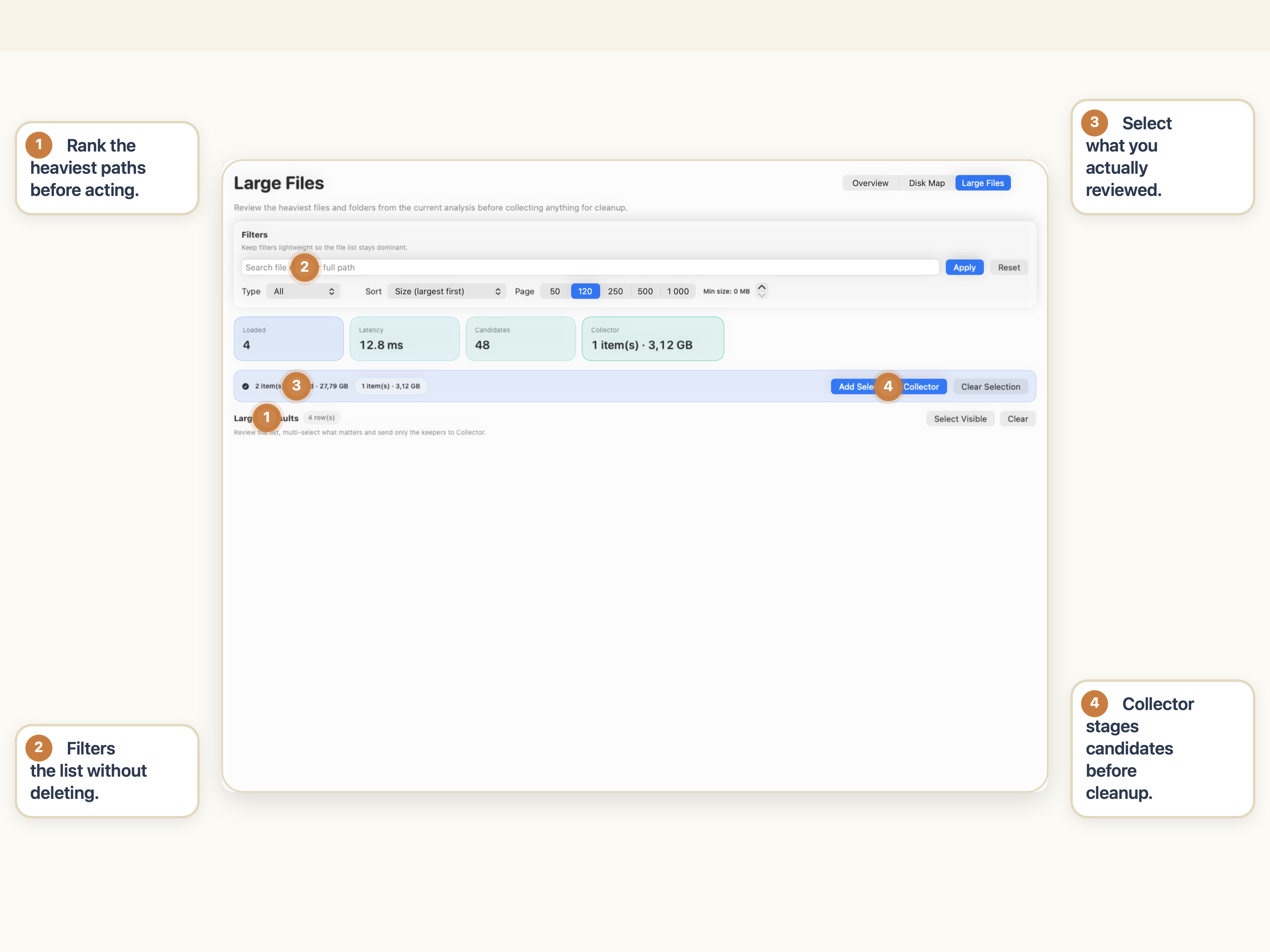
Want a calmer way to handle this warning? Review the biggest paths and folder structure before you delete anything technical-looking.
See how StorageRadar maps storage before cleanupWhat not to do when the warning appears
- do not delete random items in
/Systemor unknown folders under~/Library; - do not assume
System Datais one safe cleanup bucket; - do not wipe app containers or support folders just because they look technical;
- do not treat developer storage like ordinary clutter if Xcode, Docker, or simulators are involved;
- do not trust urgency to choose the cleanup target for you.
The warning is urgent. Your cleanup decisions do not need to be reckless.
Bottom line
When your Mac says storage is almost full, the best first move is not blind deletion. It is identifying what is actually large.
Start with Storage in System Settings, remove the biggest obvious wins first, treat System Data as a clue instead of a folder, and keep unknown Library paths in review-only mode until you understand them.
That is how you reclaim space without turning one warning into a broken app setup, lost data, or cleanup regret.
Frequently asked questions
What does “startup disk is almost full” mean on Mac?
It means your Mac is low enough on available storage that normal work, downloads, installs, and updates may become harder or less reliable. It is a real pressure warning, but it does not tell you which files are actually safe to delete.
What should I check first when my Mac says storage is almost full?
Start with Storage in System Settings to see which categories are large, then review the biggest real files and folders before deleting anything in Library or system-owned paths.
Why is System Data so large when my Mac is low on storage?
System Data is a broad category, not one tidy folder. It can include caches, logs, app support files, local snapshots, simulator data, and developer artifacts, so the number can look alarming before you inspect the real paths behind it.
Should I delete files in ~/Library when Mac storage is almost full?
Not blindly. Some Library paths are rebuildable caches, but others contain app state, databases, settings, or containers that still matter. Treat unknown Library paths as review-only until you know what owns them.
Can macOS storage recommendations help before manual cleanup?
Yes. Apple’s built-in Storage recommendations can help you review categories and built-in cleanup options first. They are a better first step than random Finder deletion when you are in panic mode.