The promise sounds perfect when your Mac is low on space: scan the disk, press one button, and let the app clean everything up for you.
The problem is not cleanup itself. The problem is opaque cleanup. A real Mac contains personal files, rebuildable caches, app support data, containers, developer artifacts, backups, and protected system-managed paths. Those do not all deserve the same deletion logic.
That is why “one-click cleaner” is such a risky idea. It compresses scanning, classification, permissions, and removal into one emotional decision. Convenient marketing, weak operational safety.
The core risk: deleting files is not inherently reckless. Deleting files without review, context, and permission awareness is.
Quick answer
- One-click cleaners collapse scan, review, and deletion into a single action.
Reclaimable sizeis not enough by itself. You need to know what the path is and what depends on it.- Useful caches, app support data, containers, simulator runtimes, and leftovers should not be treated like the same kind of junk.
- macOS permissions can turn cleanup into a partial or blocked operation, which means the result needs to be explained clearly.
- A safer workflow is: scan, visualize, shortlist, preview, preflight, confirm, then apply.
- Review-first cleanup is especially useful on work Macs, developer Macs, and any machine where you cannot afford accidental data loss.
A quick comparison of cleanup styles
If you are comparing specific tools rather than just cleanup philosophy, the important difference is not only brand. It is workflow shape.
| Cleanup style | What it optimizes for | When it fits best | Main risk |
|---|---|---|---|
| One-click cleaner | Speed and broad automation | Low-friction cleanup for users who want fewer intermediate decisions | Review is compressed into one action |
| Visual disk mapper | Visibility and manual inspection | Finding large paths before you decide anything | You still need to bring your own cleanup judgment |
| Focused uninstaller | Narrow app removal workflows | Uninstall residue and related app files | Too narrow for broader storage diagnosis |
| Review-first workflow | Evidence before apply | Cautious cleanup, app leftovers, and developer-heavy Macs | Slower by one or two steps, but much clearer |
If you want the tool-specific version of that comparison, read Best CleanMyMac Alternatives for Mac in 2026.
If you need the practical next step, start here
You just need to reclaim space safely
Read nextUse How to Free Up Disk Space on Mac Without Breaking Anything for the full review-first cleanup sequence.
You still do not know what is actually large
Read nextStart with How to Find What Is Taking Space on Mac before you judge any cleaner or deletion plan.
The risk is app leftovers or Library data
Read nextGo to How to Remove App Leftovers on Mac Without Losing Data when the real problem is uninstall residue, not general clutter.
You want a deletion checklist before acting
Read nextUse How to Review File Deletions Before Cleanup on Mac for the path-by-path review workflow.
Why “clean in one click” is the wrong promise for a file system
One-click cleanup sounds attractive because it removes the hardest part of cleanup: judgment. The user does not want to think about file ownership, app state, or permissions. They want space back quickly.
But storage cleanup is not one decision. It is a sequence of different decisions about different kinds of data.
The same size does not mean the same risk:
| Large item | What it may really be | Safe response |
|---|---|---|
| Old DMG installer | A one-time installer you no longer need | Often safe to remove |
| App support folder | Local databases, downloads, indexes, or working state | Review first |
| Simulator runtime | Rebuildable developer tooling, but expensive to recreate | Remove only if the workflow is inactive |
| Exported video file | Personal output that may still matter | Keep, archive, move, or remove depending on ownership |
A cleaner that treats these as the same category is not simplifying the disk. It is hiding the difference between low-risk and high-risk removal.
That is the key point: the danger is not that cleanup tools exist. The danger is that some tools reduce a mixed file system to one confidence score and one button.
What can go wrong with one-click Mac cleanup
The market has trained people to think that cleanup is about finding the biggest junk pile and wiping it quickly. In practice, the risky part is not disk usage. It is lack of transparency.
1. Deletion happens without enough context
A reclaimable number looks precise, but it does not tell you whether the files are user-owned, app-owned, or system-owned. It does not tell you what will rebuild, what will disappear permanently, or what another workflow still depends on.
That is why serious cleanup needs exact paths, category context, and some explanation of why a path was selected in the first place.
2. Useful caches and app state get treated like junk
Some caches are disposable. Some are only mostly disposable. Some sit next to app state that still matters.
The risk is not just “deleting a cache.” The risk is deleting a path that looks temporary but is actually carrying local downloads, login state, indexes, container data, or app-specific history. That is one reason app cleanup and leftover cleanup deserve focused review instead of generic one-click logic.
If your main problem is app-related storage, read How to Remove App Leftovers on Mac Without Losing Data before treating Library paths like generic clutter.
3. You cannot explain what actually changed
After an opaque cleanup run, users often know only that some amount of space came back. They do not know which exact paths were touched, which actions failed, or which app behavior may change tomorrow.
That creates a bad recovery position. If something breaks, the user cannot reconstruct what happened easily enough to learn from it.
4. Permissions can turn cleanup into a partial operation
macOS cleanup does not happen on a flat, fully accessible disk. It happens inside sandbox and privacy rules.
Some paths are accessible. Some are blocked until Full Disk Access or App Management is granted. Some are already missing. Some require a fresh access check before you should trust the plan. A one-click cleaner can hide that complexity, but it cannot remove it.
That matters because partial success is still a real outcome. If a tool deletes a few low-risk files, skips protected paths, and reports one big cleanup success, the user may think the operation was complete when it was only partial.
5. Safe and risky paths get mixed into one batch
This is the structural problem with broad cleanup buttons. Old installers, app containers, support folders, developer caches, and privacy-sensitive paths can all end up inside the same recommendation set.
That mix is exactly why review matters. Cleanup is safer when the tool separates obvious wins from caution paths instead of turning everything into one “optimize now” moment.
What to do instead in the next 10 minutes
- Open the macOS storage overview and identify whether the pressure looks like
Documents, apps,System Data, or developer tooling. - Review the heaviest current paths before you think about deletion.
- Separate obvious personal files from app-owned and system-owned paths.
- Build a shortlist instead of acting on every large candidate at once.
- Run preview, dry-run, or preflight for anything cautionary.
- Only then decide whether the right action is remove, move, archive, or keep.
Why macOS makes cleanup harder than the marketing suggests
macOS adds real constraints that any honest cleanup workflow has to acknowledge.
Sandbox and protected areas change what “accessible” means
Even when a path exists, the app may not be allowed to act on it immediately. Some areas are protected by default. Others become accessible only after explicit privacy grants. That means a cleanup suggestion without access status is incomplete by design.
Full Disk Access and App Management are not cosmetic details
They are part of correctness. If a tool needs Full Disk Access or App Management to evaluate or remove a path safely, that should be visible before apply, not buried after the fact.
Some paths deserve a status stronger than “selected”
On a real machine, paths can be:
ReadyBlockedNeeds CheckMissing
Those states are not UI noise. They tell the user whether a cleanup action is reliable, incomplete, or not ready to trust yet.
Cleanup can fail partially for reasons the user never sees
This is where one-click promises become weakest. A file system action can fail because of access rules, stale assumptions, protected areas, or workflow-specific constraints. If the tool cannot surface blockers and recovery hints, it is asking the user to accept a black box.
What a safe Mac cleanup workflow looks like instead
The safer model is slower by one or two steps, but much better aligned with how Mac storage actually works.
1. Scan first
Find the large paths before you decide anything. If the issue is broad disk pressure, start with the current snapshot and identify what is actually heavy.
2. Visualize the storage tree
Size without structure is weak context. A tree view shows whether a large path is one isolated file, one heavy subtree, or part of a larger app-owned branch. If you still need that first diagnostic step, How to Find What Is Taking Space on Mac is the right guide.
3. Build a shortlist
Do not act on every candidate the tool can find. Build a smaller list of paths you understand well enough to classify as safe, review-needed, or blocked.
4. Run preview or dry-run steps
A trustworthy tool should let you inspect the intended effect before the final removal step. If there is no preview boundary, the user is being asked to trust the selection and the action at the same time.
If you want the practical checklist for that review stage, read How to Review File Deletions Before Cleanup on Mac.
5. Run preflight for caution paths
Higher-risk cleanup needs an extra checkpoint. That is where permissions, blockers, workflow consequences, and path sensitivity should become explicit.
6. Apply only after explicit confirmation
The final delete step should come after review, not before it. For higher-risk selections, there should be a visible confirmation boundary that makes the user acknowledge the risk consciously.
What review-first cleanup looks like in practice
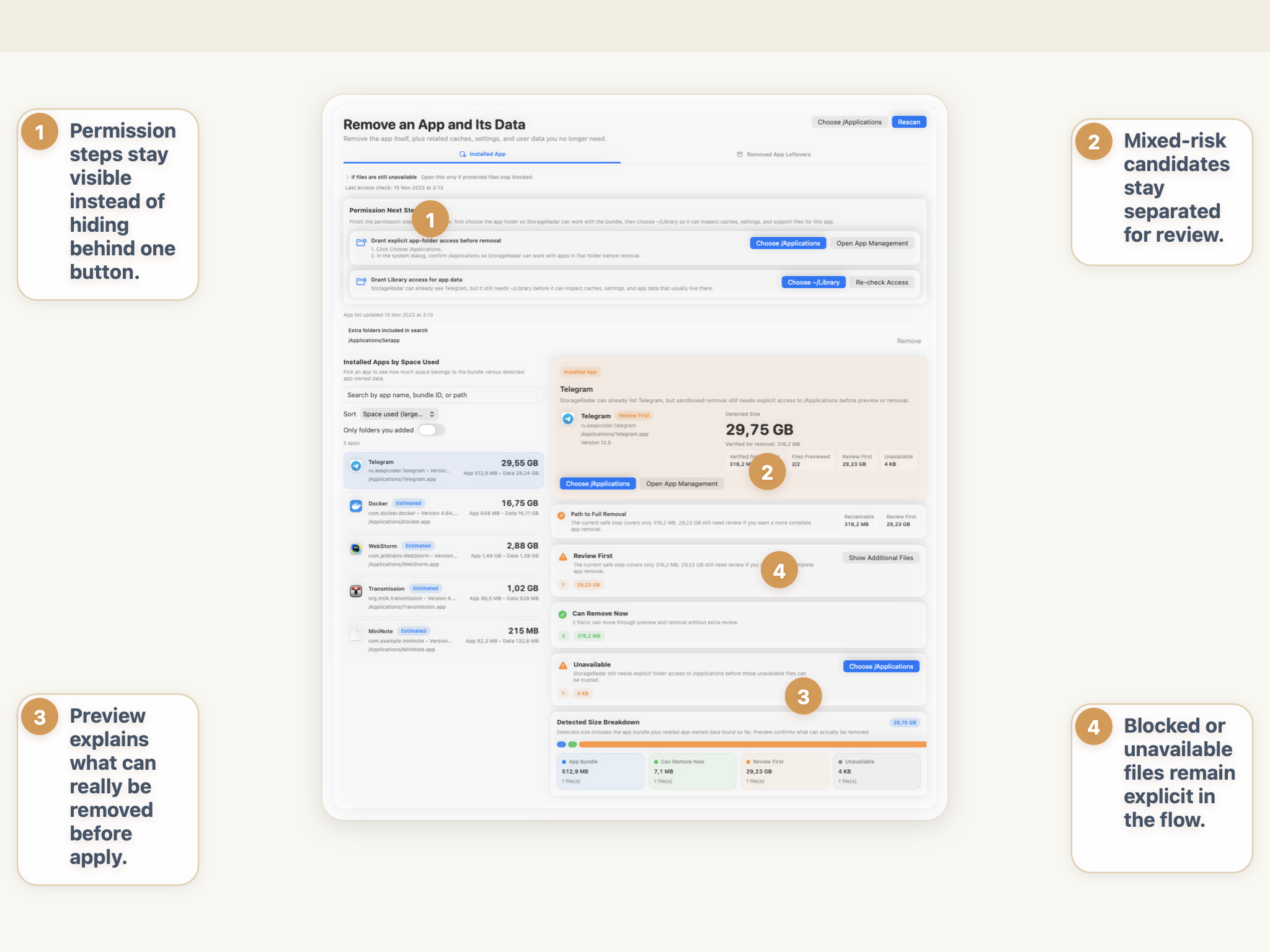
This is the philosophy StorageRadar is built around. It is not a one-click cleaner. It is a review-first cleanup workflow.
That changes the cleanup experience in an important way. The product does not ask you to trust a mystery score. It asks you to review a path, understand its context, and cross a preview boundary before the final action.
That is also why this approach fits both cautious users and power users. Review-first cleanup is not about making the app slower. It is about making the risk visible before the delete step, not after.
See how StorageRadar lets you review cleanup before applying.
See the review-first workflowWho benefits most from a review-first cleanup workflow
Not every Mac has the same risk profile. The more your disk contains work, tooling, or unusual structure, the less attractive one-click cleanup becomes.
- Cautious Mac users who want to understand what will change before pressing delete.
- People who already had a bad experience with a cleaner and do not want a repeat.
- Developers and power users with simulators, containers, build output, caches, and local runtimes.
- People using a work Mac where accidental deletion costs more than a few extra review steps.
- Anyone with a nonstandard file structure, multiple projects, or app data that is hard to rebuild.
The common factor is not technical skill. It is consequence. The more expensive the wrong deletion would be, the more valuable review-first cleanup becomes.
Conclusion
One-click cleanup is appealing because it promises to remove friction. The problem is that the friction it removes is often the exact review step that protects users from mistakes.
The safest cleanup tools do not pretend every large path is the same kind of clutter. They separate scan from deletion, surface access and risk, and make the user confirm higher-risk actions deliberately.
The risk is not deletion by itself. The risk is deletion without visibility.
Frequently asked questions
Are one-click Mac cleaners safe?
Not by default. The risk is not cleanup itself, but cleanup that happens without showing exact paths, ownership, permissions, and likely consequences first.
Why is deleting caches on Mac sometimes risky?
Some caches rebuild cleanly, while others sit next to app state, local databases, downloads, or containers that still matter. A cache-looking path is not automatically safe to remove.
Why do permissions matter for Mac cleanup tools?
macOS privacy and sandbox rules mean some paths can be accessible, blocked, stale, or partially removable depending on Full Disk Access, App Management, and current path ownership. A cleaner should show that context instead of hiding it.
What is safer than a one-click cleaner on Mac?
A review-first workflow is safer. Scan first, inspect the largest paths in context, build a shortlist, run preview or dry-run steps, resolve permission blockers, and only then apply cleanup.
Is review-first cleanup only for developers?
No. Developers benefit strongly because they have more caches, runtimes, and tool-generated data, but cautious everyday users also benefit because app support files, Downloads clutter, media libraries, and leftovers still need review.
What should a trustworthy Mac cleanup app show before deleting anything?
It should show the exact paths, size, category, risk level, access status, and whether the action is a preview or a final apply step. If it cannot explain what it is removing, it is asking for trust it has not earned.