If Xcode Simulator is taking up space on your Mac, separate simulator runtimes from simulator device data before you delete anything. Start by reviewing what is unavailable, what is inactive, and what you still need for testing, because simulator cleanup gets risky when you treat every Apple-side folder like disposable cache.
That is the mistake developers make after they learn one cleanup rule and apply it everywhere. DerivedData is one thing. Simulator runtimes and simulator device state are another.
The storage can be reclaimable. The consequences are just less uniform.
Main rule: clean simulator storage by layer. Remove unavailable devices first, erase device data only when you mean to reset it, and delete runtimes only when you no longer need that OS version.
Quick answer
- Check whether the real footprint is simulator runtimes, simulator device data, or both.
- Use
xcrun simctl list devicesandxcrun simctl list runtimesbefore deleting anything. - Delete unavailable devices first with
xcrun simctl delete unavailablewhen they appear under the unavailable section. - Use
eraseonly when you want to reset a simulator device's contents and settings. - Delete runtimes only when you are sure you no longer need that platform version for builds, previews, or testing.
- If Apple-side storage is broader than simulators alone, review
DerivedData,Archives, andCoreSimulatortogether instead of guessing from one folder.
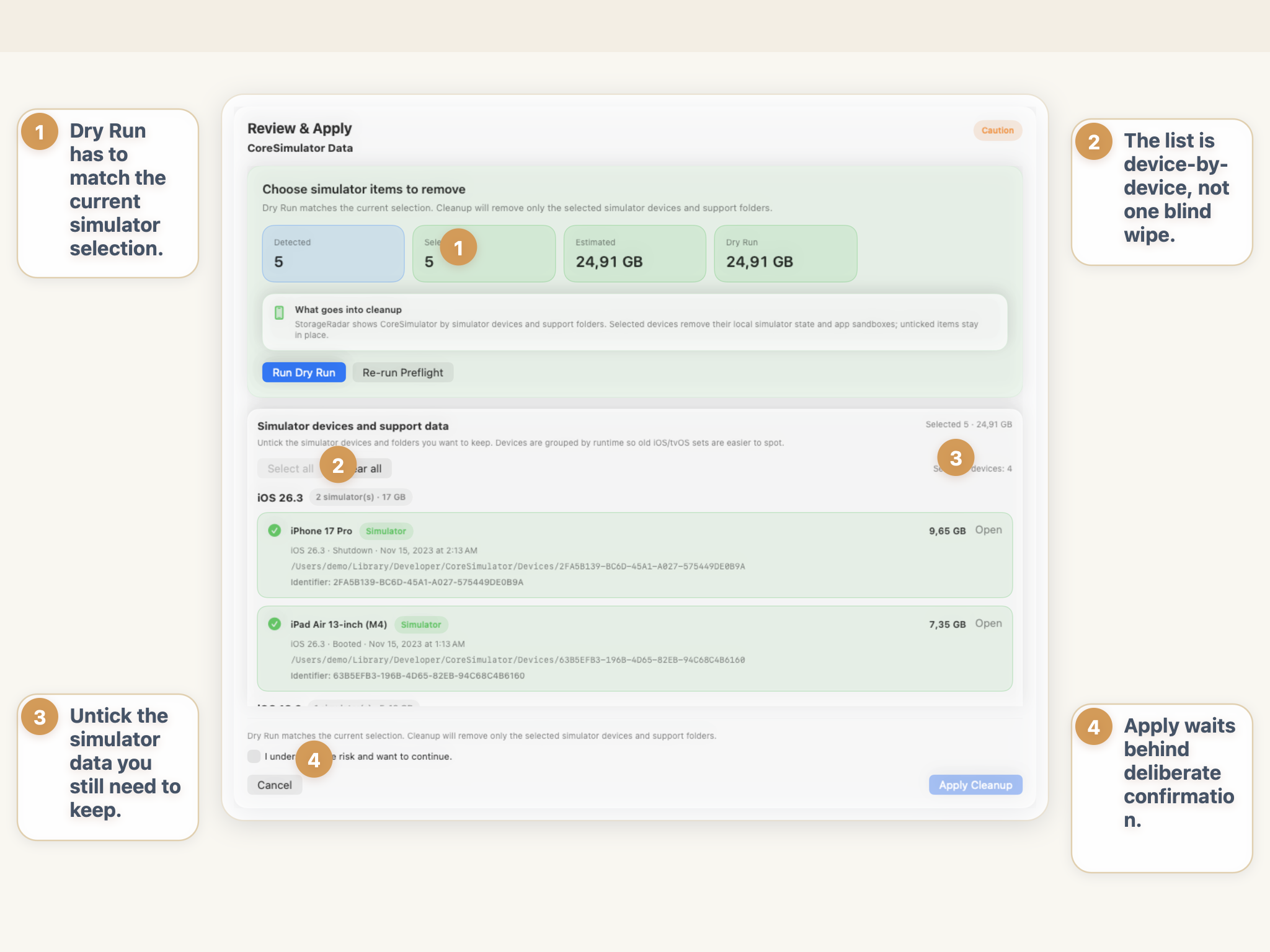
What Xcode simulators store and why it adds up
Simulator storage is not one thing. It is several layers that accumulate together.
At the high level, Xcode simulator storage usually includes:
- runtime images for different iOS platform versions;
- created simulator devices for different iPhone and iPad models;
- per-device app data, settings, and state inside those simulators;
- Apple-side development churn that grows when you switch SDKs, device types, and Xcode versions.
This is why developers often feel confused by CoreSimulator. It is easy to look at the folder size and assume the whole thing is just cache. In practice, some of it is more like disposable test state, and some of it is runtime support you still depend on.
The growth pattern is normal:
- you install a new Xcode or SDK;
- new runtimes appear;
- new simulator devices are created;
- apps, test data, and settings accumulate inside them;
- old devices become unavailable after SDK changes or Xcode upgrades;
- nothing gets reviewed for months because the machine still has enough free space.
Then one day simulator storage is the story, not just a detail.
Simulator runtimes vs simulator data: What is the difference?
This is the distinction that matters most.
Apple’s simctl tooling treats runtime operations separately from device operations. That alone tells you the cleanup model is layered: devices are not the same thing as runtimes, and erasing a device is not the same thing as deleting a runtime image.
| Layer | What it represents | Typical cleanup action | Main tradeoff |
|---|---|---|---|
| Simulator runtimes | The OS runtime images used to boot specific platform versions | simctl runtime delete for a runtime you truly no longer need | You lose that runtime for future simulator use until you add it back |
| Simulator devices | Created simulator instances for specific device models | simctl delete <device> or delete unavailable | The device instance disappears |
| Simulator device contents and settings | Installed apps, app data, settings, and state inside a device | simctl erase <device> | The device remains, but its contents and settings are reset |
That is why broad statements like “just clear CoreSimulator” are weak advice. They collapse different cleanup consequences into one emotional action.
Where DerivedData fits in
DerivedData is adjacent, but it is not the same problem.
DerivedData is generally generated build output. Simulator storage is more mixed. It can include runtimes you still need, created devices you no longer need, and state inside devices that you may or may not care about.
If the pressure is mostly generated build output, the right guide is Xcode DerivedData Taking Too Much Space on Mac? What to Clean First. If the pressure is mostly runtime images and simulator state, stay with the simulator workflow.
How to check how much space simulators are using
The first move is inspection, not deletion.
Use Apple’s own tooling to see what devices and runtimes actually exist:
xcrun simctl list devices
xcrun simctl list runtimes
If you want to inspect the broad Apple-side storage footprint on disk, you can also compare the major folders directly:
du -sh ~/Library/Developer/CoreSimulator
du -sh ~/Library/Developer/Xcode/DerivedData
du -sh ~/Library/Developer/Xcode/Archives
This matters because the biggest Apple-side folder is not always the one you assumed. Sometimes DerivedData is the dominant problem. Sometimes CoreSimulator quietly outgrows it.
What to look for first
- devices listed under
Unavailable; - runtimes for OS versions you no longer test;
- many created devices across several runtime generations;
- simulator-heavy state on a machine that has not been cleaned since multiple Xcode updates;
- a large
CoreSimulatorfolder that does not match your current testing needs.
That is the point where cleanup starts becoming rational instead of reactive.
Is it safe to delete simulator runtimes on Mac?
Sometimes, but this is not the safest first move.
Apple’s simctl runtime help makes it clear that runtime images are their own managed objects. Deleting a runtime is different from clearing a simulator’s contents. It is also different from deleting an unavailable device.
That means runtime deletion is best when:
- you no longer need that iOS version for testing;
- you have moved past an older Xcode or SDK generation;
- the runtime is unused enough that the space is worth more than the convenience;
- you have checked the runtime list first and know exactly what you are removing.
It is a worse idea when:
- an active project still targets that runtime family;
- SwiftUI previews, QA repro steps, or regression testing still depend on it;
- you are about to demo or debug an issue on an older target;
- you are deleting based on size alone rather than actual test needs.
Better first move: remove the obvious dead weight
The safest simulator cleanup often starts with unavailable devices.
Apple documents this directly in simctl delete: the unavailable alias deletes devices that are not supported by the current Xcode SDK.
xcrun simctl delete unavailableThat is not a universal answer, but it is one of the cleanest first passes because it targets devices already marked as unsupported by your current SDK context.
Cleaning simulator data without losing your dev environment
This is where developers often use the wrong tool for the job.
If your problem is stale app data or bloated device state inside simulators, you may not need to delete runtimes at all. You may only need to reset the simulator devices.
Apple’s simctl erase help defines erase as erasing a device’s contents and settings:
xcrun simctl erase <device>That is a reset operation, not a runtime removal operation.
What erase is good for
- clearing app state inside a simulator;
- resetting test environments;
- removing bloated device-level contents without removing the runtime image itself;
- keeping the device workflow while dropping its accumulated state.
What erase is not
- not a runtime cleanup command;
- not a
DerivedDatacleanup command; - not a good replacement for reviewing which devices and runtimes you actually still need.
That distinction is the whole simulator cleanup story: erasing a device, deleting a device, and deleting a runtime are three different decisions.
How to manage simulator storage going forward
The practical goal is not “never let simulators grow.” The practical goal is “stop simulator storage from becoming invisible.”
Use a review rhythm like this:
- List devices and runtimes after major Xcode or SDK changes.
- Delete unavailable devices when they appear.
- Reset stale simulator devices when the problem is device state, not runtime inventory.
- Review runtime usage before removing an OS version entirely.
- Compare
CoreSimulator,DerivedData, andArchivestogether when Apple-side storage starts climbing.
That keeps the cleanup decision aligned with the layer that is actually expensive.
A better mental model for Apple-side storage
DerivedDatais mostly generated build output.Archivespreserve deliverables and build history.CoreSimulatormixes runtime support with simulator device state.- the safest cleanup depends on which layer is large, not just which folder is visible.
Once you think in layers, simulator cleanup gets much less chaotic.
Why developer cleanup works better when it stays ecosystem-aware
If you only use Finder, a 20 GB or 30 GB Apple-side folder looks like one obvious cleanup target. It is not.
A file browser can show you that CoreSimulator is large. It cannot tell you whether the real reclaimable space is:
- unsupported devices;
- resettable simulator contents;
- runtimes you no longer need;
- or a neighboring Xcode profile that only happens to live nearby.
That is why simulator cleanup belongs inside developer cleanup, not generic file cleanup.
If your real issue is “simulators plus DerivedData plus other Apple dev storage,” that broader profile-aware workflow is much more useful than chasing one folder path at a time.
Bottom line
If Xcode Simulator is taking up space on your Mac, do not treat CoreSimulator like one disposable cache bucket.
Review devices and runtimes first. Delete unavailable devices as the clean first pass, use erase only when you want to reset simulator contents and settings, and remove runtimes only when you truly no longer need that OS version.
That is the safer cleanup path: separate runtime images from device state, separate simulator storage from DerivedData, and keep Apple-side cleanup tied to actual testing needs instead of blind folder deletion.
Frequently asked questions
Why does Xcode Simulator take so much disk space on Mac?
Simulator storage grows because Xcode keeps runtime images, created simulator devices, app data inside those simulators, and other Apple-side development state over time. Testing across several iOS versions and device types makes the footprint expand quickly.
What is the difference between simulator runtimes and simulator data?
Simulator runtimes are the OS runtime images Xcode uses to boot simulators for specific platform versions. Simulator data is the device-level state inside created simulators, such as installed apps, app data, and settings.
Is it safe to delete unavailable simulator devices?
Usually yes. Apple's simctl tool explicitly supports deleting unavailable devices, which are devices no longer supported by the current Xcode SDK. That is often one of the safest simulator cleanup steps.
Is it safe to delete simulator runtimes on Mac?
Sometimes, but only when you know you no longer need that runtime for testing, previews, or older project targets. Removing a runtime is a bigger decision than erasing simulator contents because it removes the runtime image itself.
Does erasing a simulator delete the runtime?
No. Apple's simctl help describes erase as clearing a device's contents and settings. That resets the simulator device, but it is different from deleting the runtime image behind it.